Installing MS Project/Visio on Your Work Computer
Login to https://portal.office.com
In the top right corner, click on
Install and morethen click onInstall Microsoft 365 apps.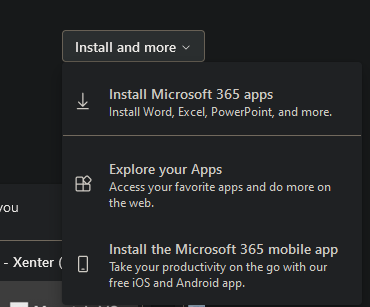
ms-install-apps-btn On the next page, click on the menu option for
Apps & devicesand then click on theInstall VisioorInstall Projectbuttons. This will download a program you can run to install the program.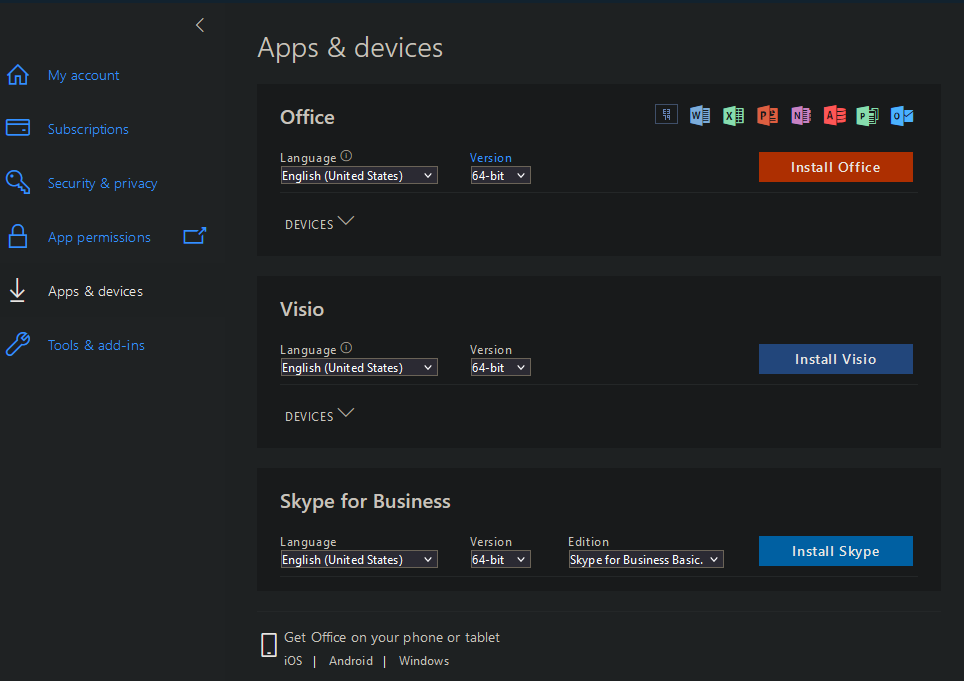
ms-apps-devices Upon initiating the installation it Visio/Project may ask you to close other Office 365 programs. The other apps need to be closed in order to ensure that Visio/Project integrates with them correctly.
Troubleshooting
Visio Standard (Unlicensed Product) This is an error that can be caused with a freshly installed version of Visio that isn’t syncing to the license.
Ensure the user has a license assigned for Visio Plan 2
Direct the user to open Visio, in the bottom left click the settings gear icon
Towards the top right of the menu there should be a section with
Product InformationUnder product information select
Update License(check the white box in the image below)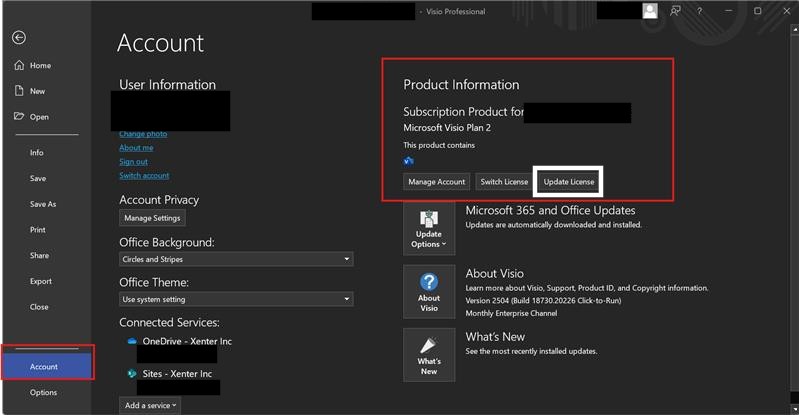
visio-update-license The user will then sign back into their Microsoft account and force a sync to pull down the license