Outlook Guides & Troubleshooting
Table of Contents
Guides
All of these guides are done using new Outlook.
Adding New Calendar
Open Outlook and select the Calendar option in the left hand tab. Once you are in the calendar page, select
Add calendar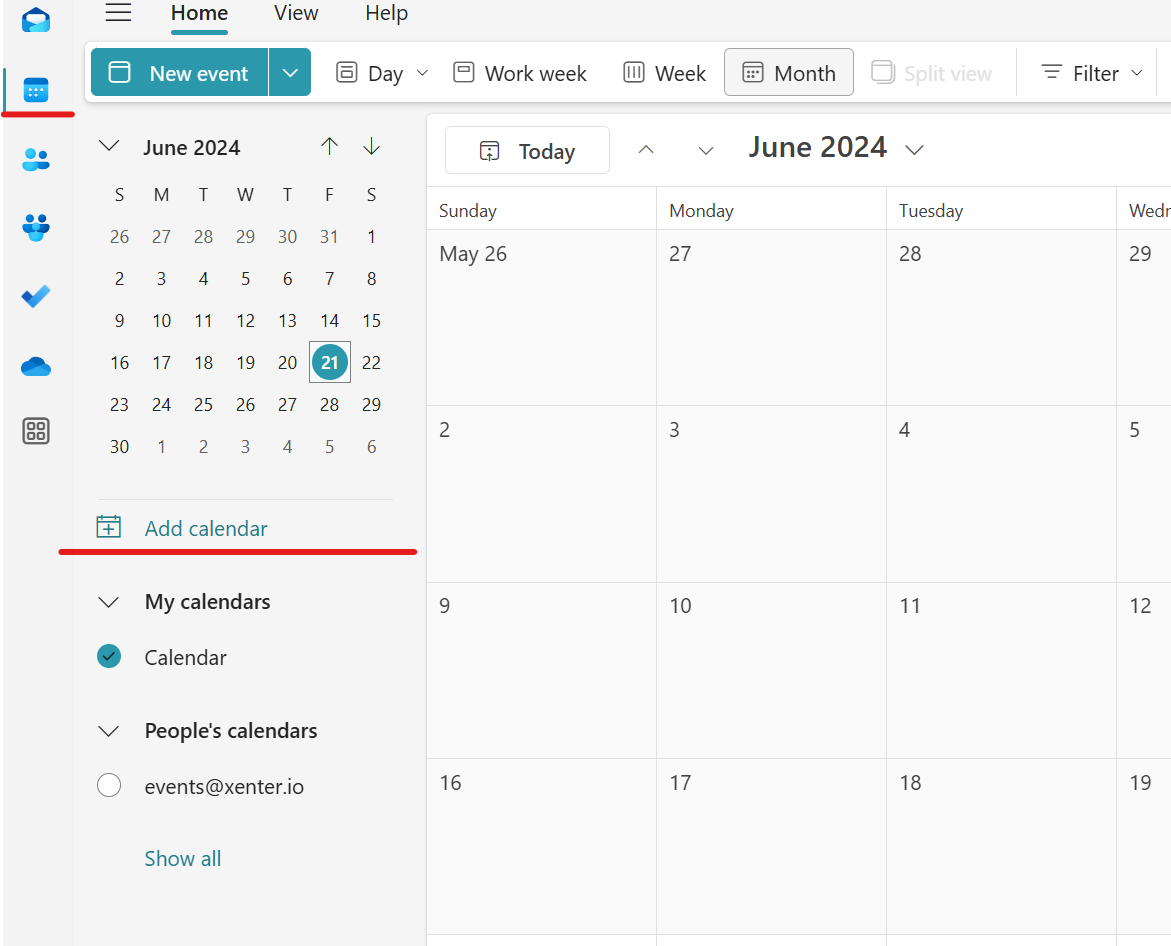
outlook1 This will open a pop up page. On the left select
Add from directory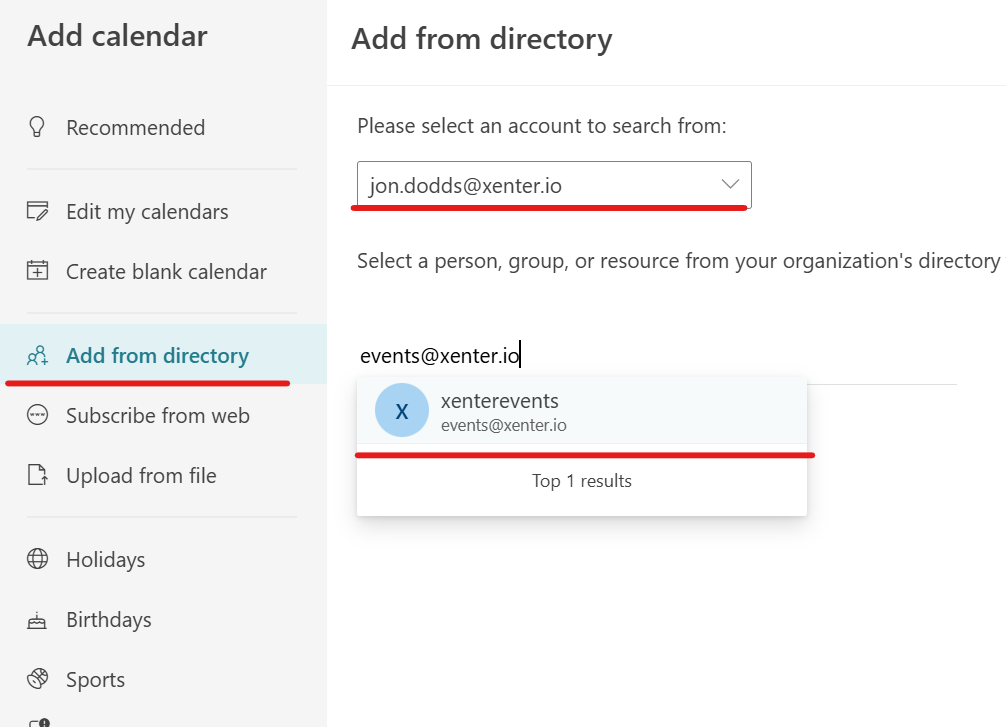
outlook2 You will search from your Xenter email account.
In the search bar, search in the email address of your calendar, in this case it is
events@xenter.io. Then press Enter to select the email.Select the where you wish the calendar to be stored. You can place it into
My Calendars, Then selectAdd
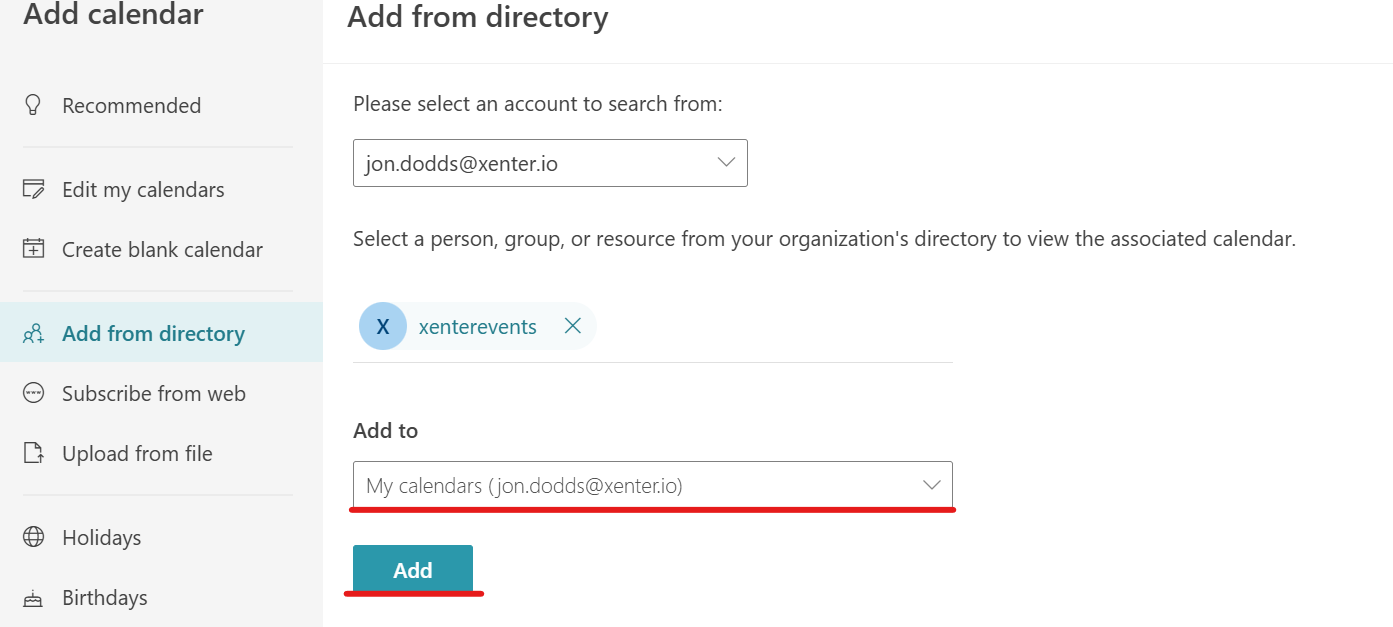
Your new calendar should now be placed in and you can select and deselect calendars on the left.
Delegate Access
- Setting delegate access for a mailbox
- In the Inbox of the Mail section. Look at the left menu mail.
- Find your email section that you wish to share. Right click the email address.
- Go down to Sharing and permissions.
- At the top press the
+icon to add the email user. Then select permissions level.
- Setting delegate access for a calendar
- Open the calendar from the lefthand menu.
- Select the calendar that they want to share from the left side list.
- Right click or select the three dots and select
Sharing and permissions - Type in the email address of the person who is being shared to.
- When the user is selected, you then selected the permissions from drop down. You almost certainly want
Can editand NOTDelegate. Delegate means they will receieve notifications for all meetings as well.
Troubleshooting
Email message conflicts with a policy
Some users may get an error message when sending an email that stats Your email message conflicts with a policy in your organization.. This commonly happens because they are replying to an outside vendor and attaching a copy of their email or a pdf that was sent to them that contains DLP sensitive information. Typically, something like routing numbers, bank account numbers, etc. Almost nobody will be sending those types of numbers from Xenter to external vendors/contacts. The only people able to do so are members of the Purchasing group.
Verify that the user is not sending any Xenter account numbers externally and instruct them to remove the account numbers.
New Outlook Missing Features
There are several features that as of this moment, exist in old Outlook but not in new Outlook.
Cannot open certain file extensions directly into their respective app New Outlook may not be able to open certain extensions that are not widely used. Currently, there is support for only the major apps like excel, word, powerpoint, etc. Some users are unable to open into extensions like Visio. Try in old Outlook.
Sharing contacts in new Outlook. New Outlook currently doesn’t have any features to sync contacts between users. You can either export as a CSV file and import but this doesn’t do well if you already have some of the same contact. Old Outlook has support for this feature.