Lume Pad Set Up
This guide covers the basic steps for setting up the lume pad accounts in. To find the pin for the Lume Pad login, open Bitwarden and search for Lume Pad Then the login for Lume Pad 4 Digit Login Code should appear.
If you have any questions or cannot find login’s in Bitwarden please contact IT ASAP either via email to help@xenter.io or one of the IT professionals directly.
Table of Contents
Connecting Google Account
When at the home screen, swipe up to open the app selection screen. then scroll down until you find
Play StoreThis is a google app and will require that you login with a google account.Open Play and go to Login with Google. Then open Bitwarden and search for
XenterMD Googleuse the email as the username and the password to login.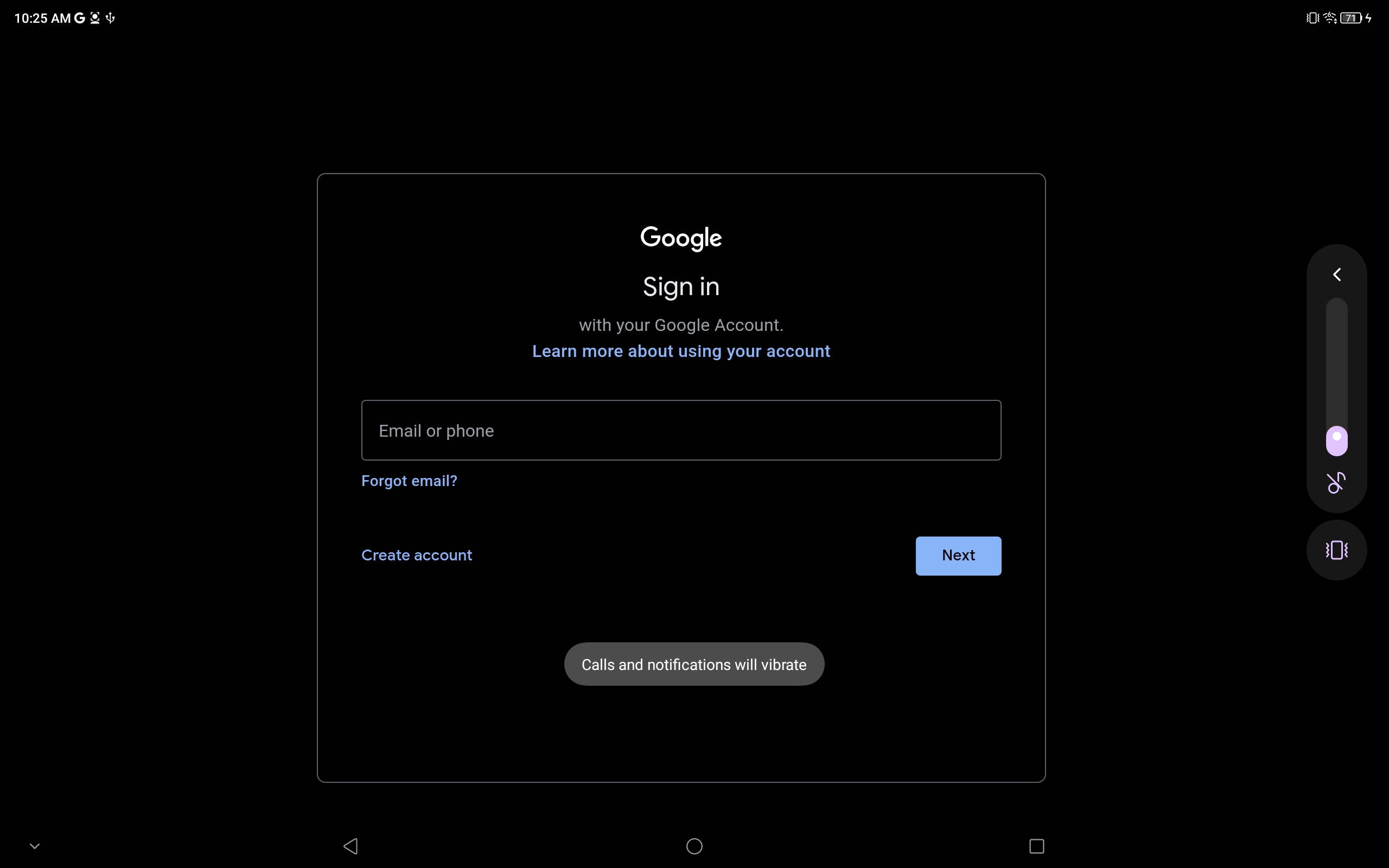
google login Once logged in you will be prompted for a two factor authentication method. Select the option,
Try Another Way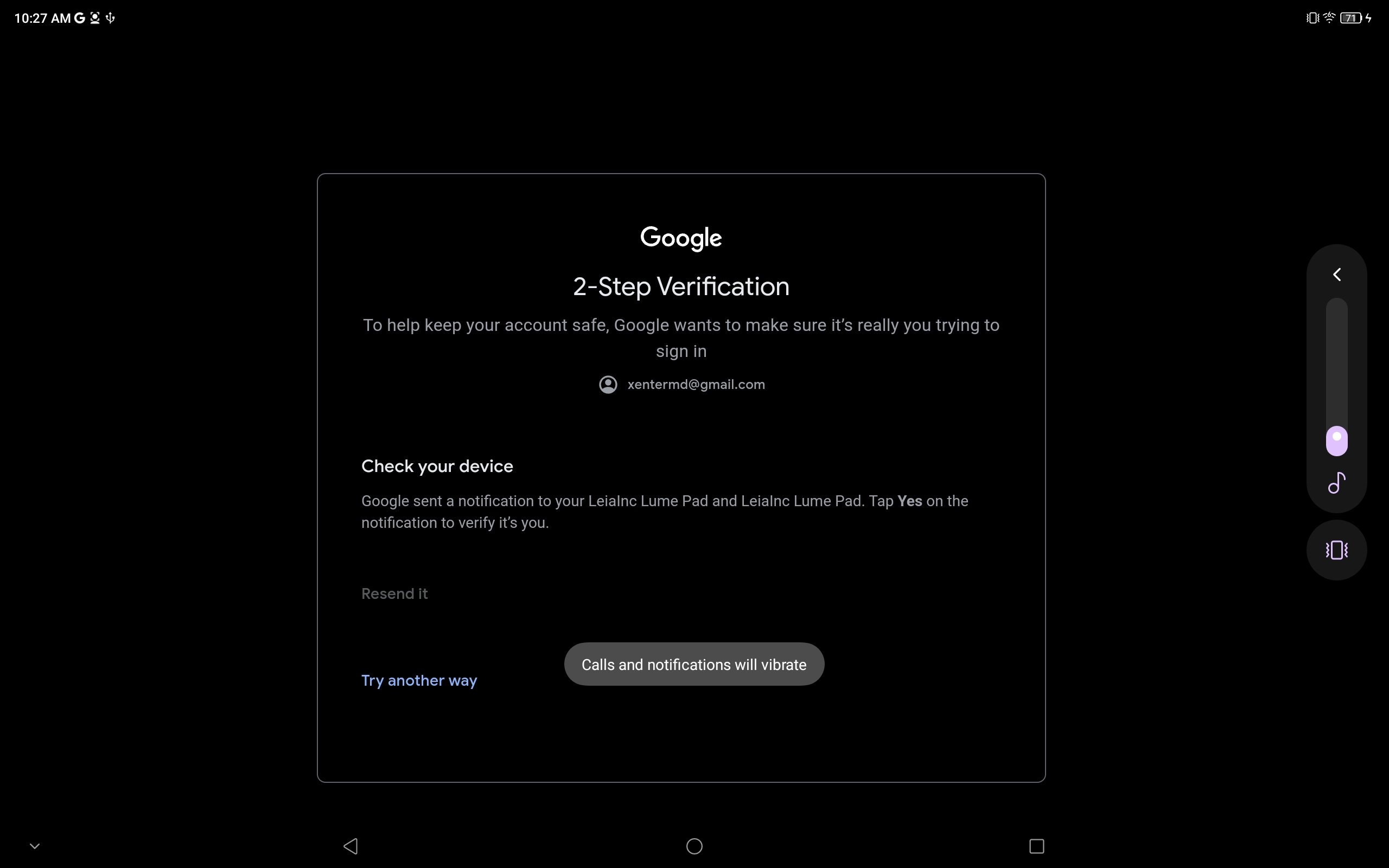
google2fa This will then bring up a series of prompts asking for authentication methods. Select the third option saying
Get a verification code from the Google Authenticator App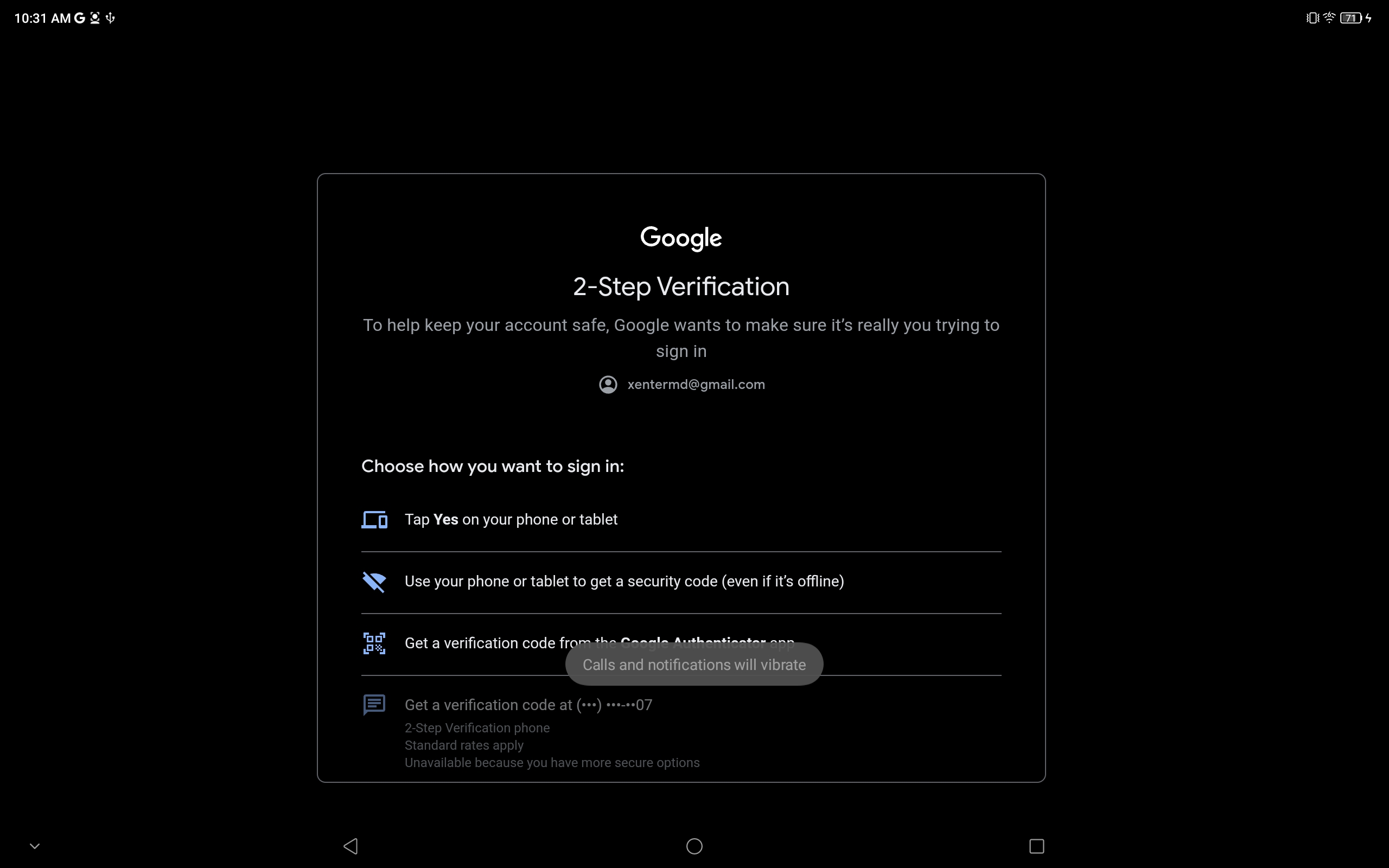
googleauthenticate Next, reopen Bitwarden and reopen the same
XenterMD Googlelogin. Under the password there is a 6 digit authenticator key. It has a 30 second timer before the code is automatically changed. Copy this code into the lumepad where it asks for it.You should now be logged into the Google account. Reopen the
Play Storeapp if needed
Downloading OneDrive
With
Play StoreOpen, search for OneDrive in the search bar for apps. Install the app when it appears.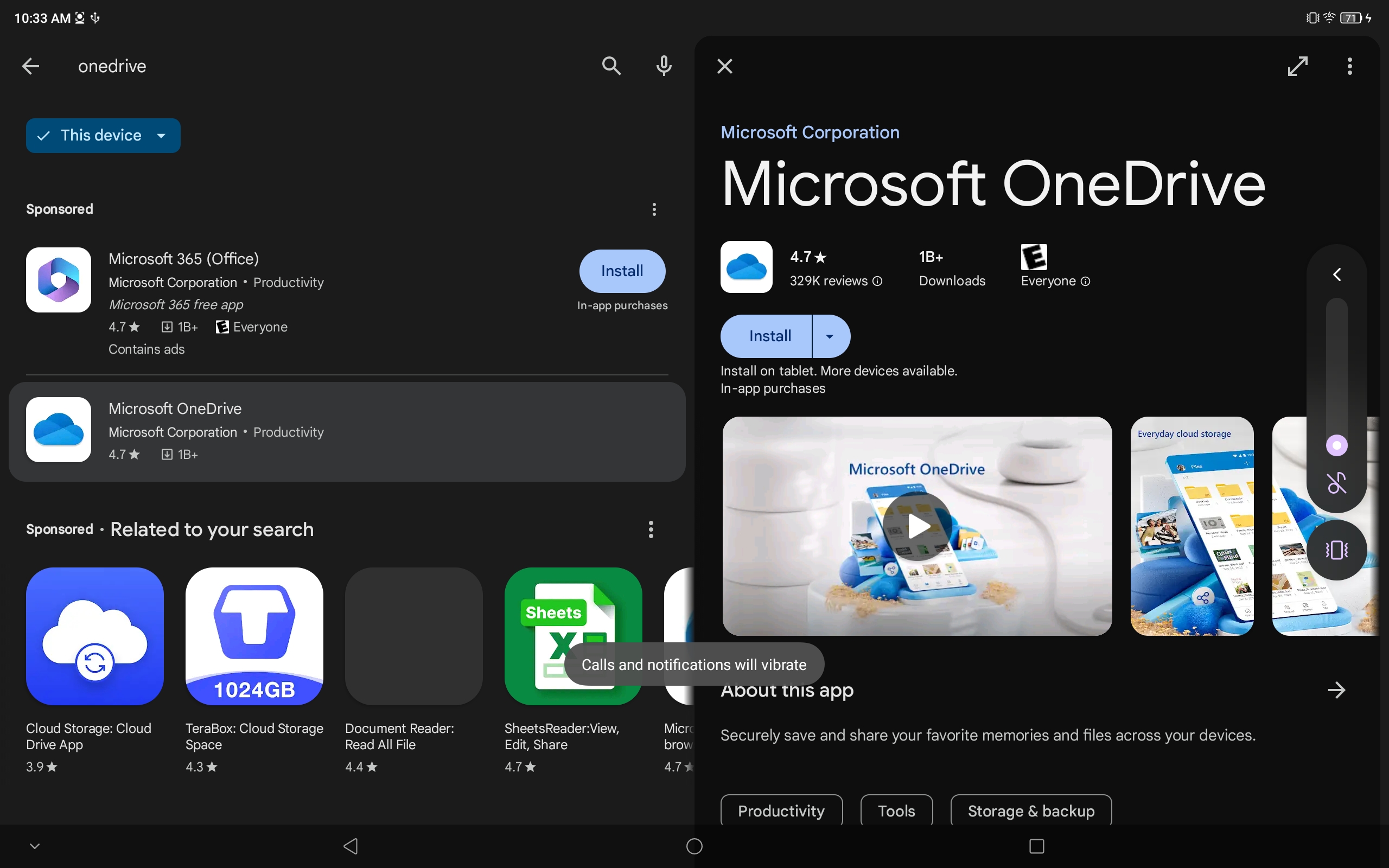
Onedrive OneDrive should install onto your homescreen. Open it once it installs.
Connecting Microsoft Account to OneDrive
With OneDrive Open, it will prompt you for a Microsoft Login. Open Bitwarden and search for
Lume Padonce again. Open theLume Pad Microsoft UserEnter the login information from bitwarden into OneDrive. Make sure you do NOT sign in with your personal xenter account. Only use the
lume.pad@xenter.iologin.