Install SolidWorks
This is short guide on how to install SolidWorks, the process is also the same for installing service pack upgrades.
Updating SolidWorks will take around an hour. Most of which is the web download of the package, but you may be unable to use SolidWorks for 10-20 minutes whiles it will update.
Table of Contents
Installing SolidWorks
Once downloaded, begin by unzipping the file you just downloaded. Select the compressed file then right click and open the drop down menu for
NanaZip. SelectExtract Here.The extracted folder should look similar as below.
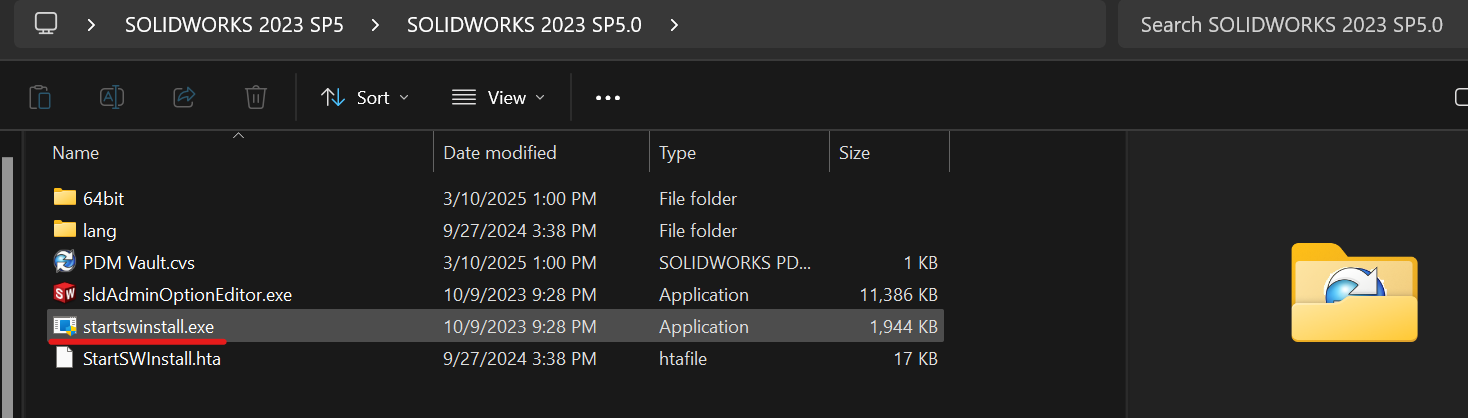
solidworksdownload The installation file is
startswinstall.exe. Running this executable will produce an empty black box. There will then be a box asking you to pressOkto begin installing the update. It may take up to 20 minutes depending if it is an update or fresh installation. You will need an administrative password for the installation.SolidWorks may prompt you to check for a pending Windows reboot from before. In the Windows search bar, search for
Windows Updates. Check for updates, and apply any that are found. You may also need to restart your computer. However, it may not actually prompt the warning to disappear. After checking for updates, you may safely continue. SolidWorks will now begin updating and installing.Upon successfully updating, SolidWorks will need a computer restart for the changes to take affect. After restarting your computer, relaunch SolidWorks to verify that it runs and boots correctly. If SolidWorks prompts a menu to verify and activate your license you must FIRST enter your Xenter email at the bottom and then select all licenses.
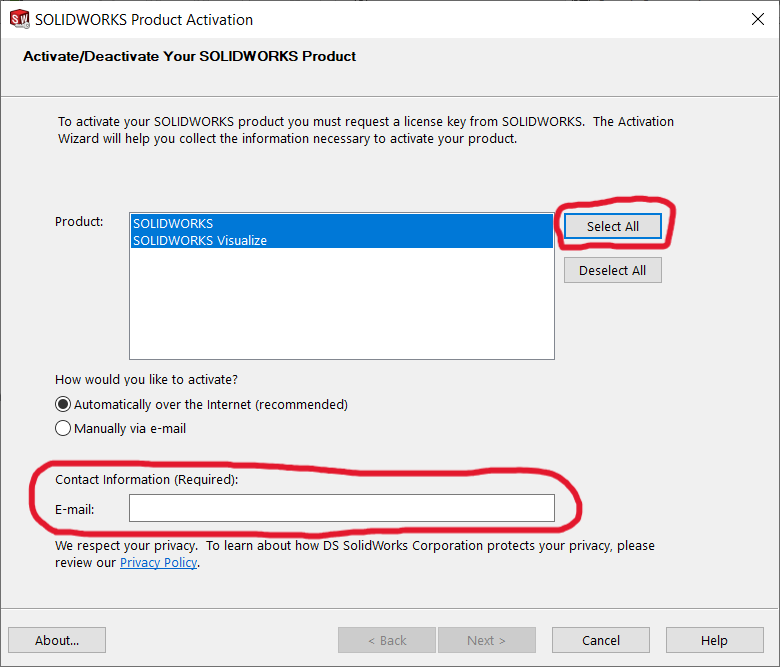
activatesolidworks
SolidWorks Uninstallation
SolidWorks can be uninstalled with this command. Use the same
startswinstall.exefrom before. Run this from an administrative command prompt and update the file path to correctly point tostartswinstall.exe.startswinstall.exe /uninstall /showui /now /removedata /removeregistry