PDM User Installation
This guide covers installing PDM on a clients computer. Troubleshooting for PDM can be found here
Table of Contents
Creating A PDM User Account
You will need PDM/SolidWorks installed on your local machine to achieve this. Open the
Administrationapplication. Log into the PDM Vault using the bitwarden login underSolidworks PDM. (PDM username at the bottom)Expand the
Users and Groups Managementand then right clickUsers->New User.Add a login name
firstname.lastname. Then add a password that is the same as the username.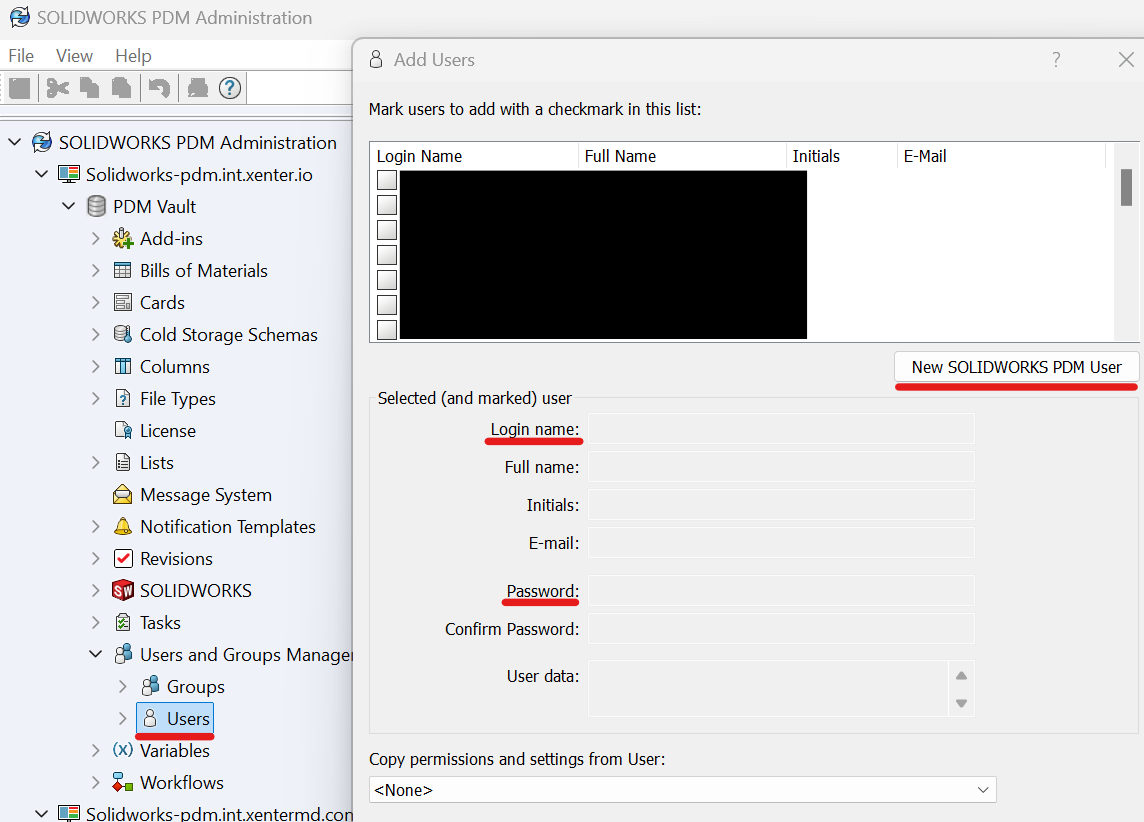
pdm-add-user Afterwards, open the user the in the lefthand menu select
Groups. Add them to theGeneral Usergroup.
Installing PDM
Installing PDM is reliant that you have first installed SolidWorks.
Inside the extracted folder from downloading SolidWorks there is a
PDM Vault.cvs. Copy the file path.Open an administrative powershell prompt and run this command.
- Update the
path_to_cvs_file_herewith the path from step 1.
& "C:\Program Files\SOLIDWORKS Corp\SOLIDWORKS PDM\ViewSetup.exe" path_to_cvs_file_here /q- Update the
Test login in the
SOLIDWORKS PDM Searchapp.