Sync a Folder to OneDrive
These are steps to sync a Teams folder to your OneDrive accessable via File Explorer.
Table of Contents
Sync Teams Files
Open Microsoft Teams
Navigate to
Teamson the left panel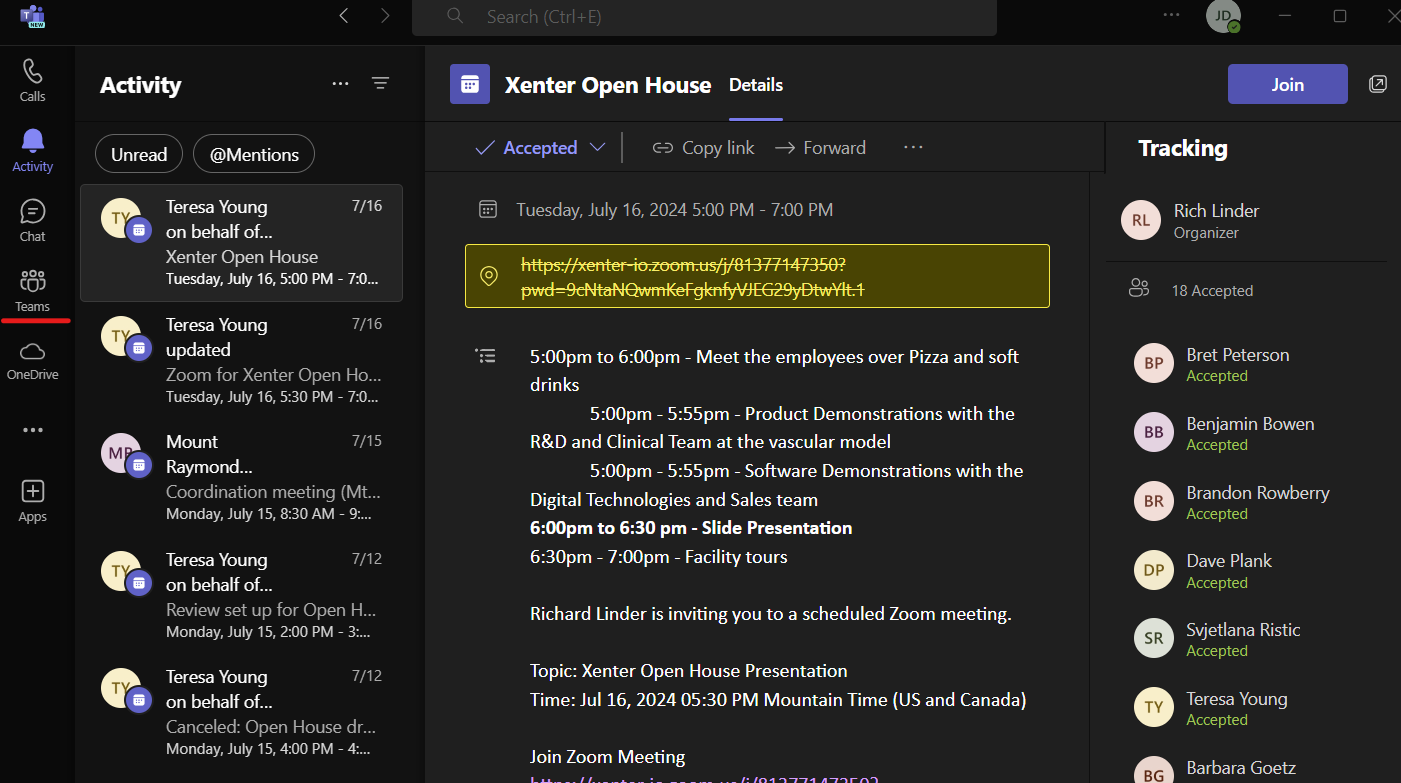
findteam Find the team you want to sync to OneDrive and open it then click
Filesat the top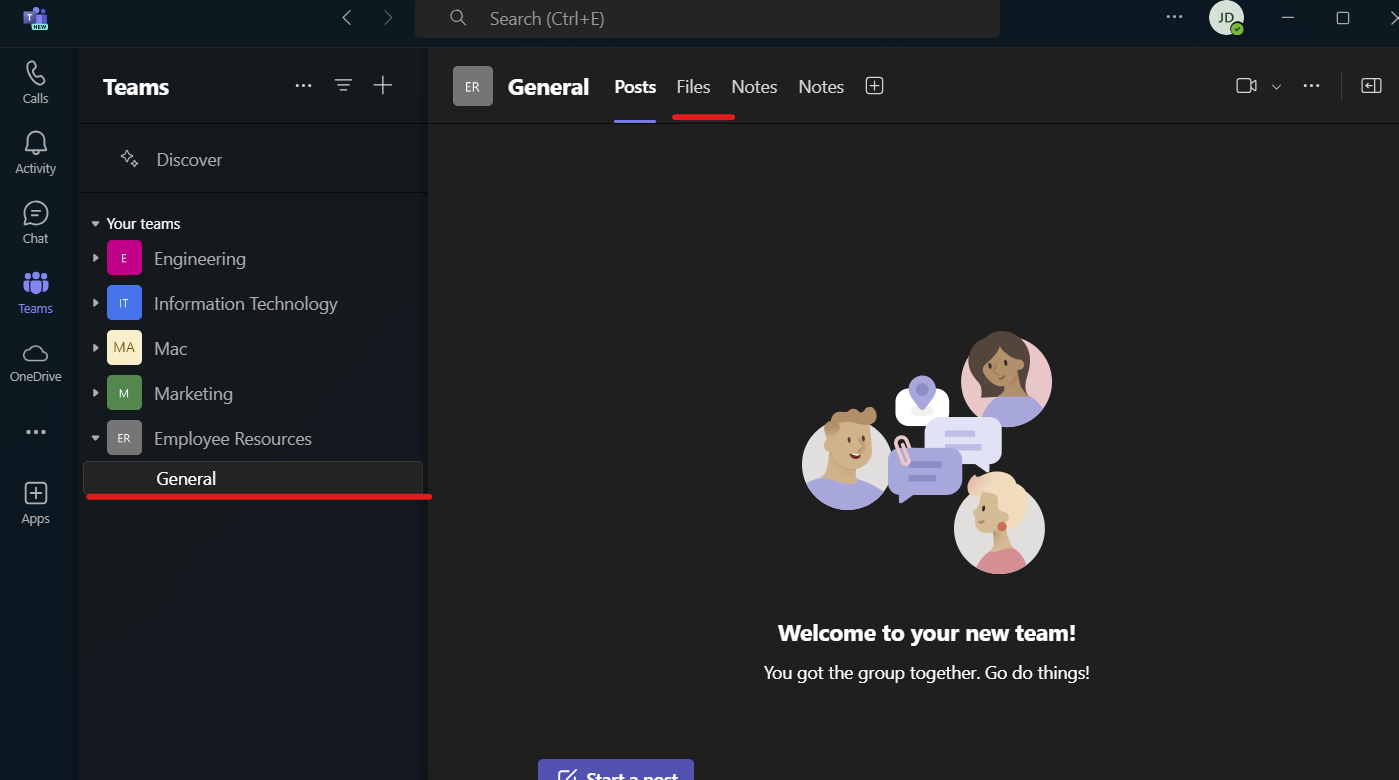
open team From here look for a
Syncoption at the top or you may need to click the three dots...this should pull up aSyncoption. Press Sync and wait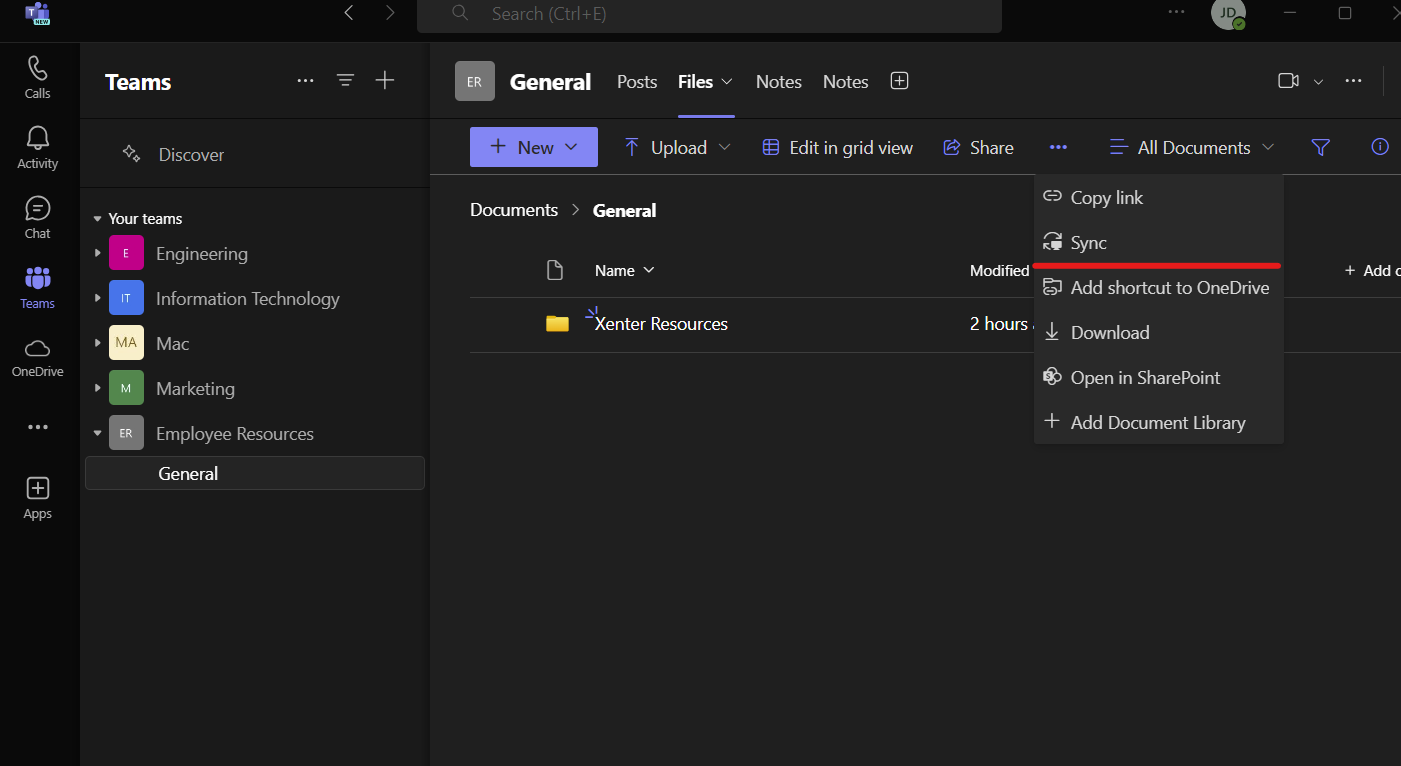
syncteam
Check File Explorer
Open file explorer, on the left towards the bottom, open
Xenter Inc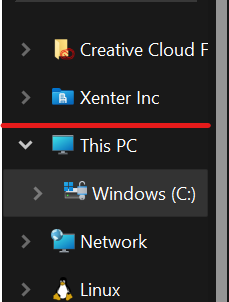
find xenter In here you will see your newly added Team files