Overview
This is an overview of basic troubleshooting techniques used for a Security Onion installation. This is not a comprehensive guide for all different errors, but just errors that were encountered during testing.
Troubleshooting
An important resource for Security Onion, is the community made Cheat Sheet. It has a list of basic commands for restarting services, updating the OS, and documentation for Security Onion services.
cat /etc/soversionThis command can be used to pull the current working version to then cross reference with Security Onion blog to see if you need a new update. Always test updates on isolated environments because custom configurations on your SO deployment can cause problems!!!sudo salt-call state.highstateWhen running so-status after starting the instance, you may recieve an output similar to the picture listed below. This command force the highstate and all dependencies to start. Check step 4 for potential next steps.
highstate sudo kill <PID>After running the highstate command, it may give you an output similar to the picture listed below. While it may not be exact wording it will be the same error. The instances listed are from failed attempts at starting required instanced that are left over. Enter the PID number listed from your error in place of<PID>, then try running step 3 again.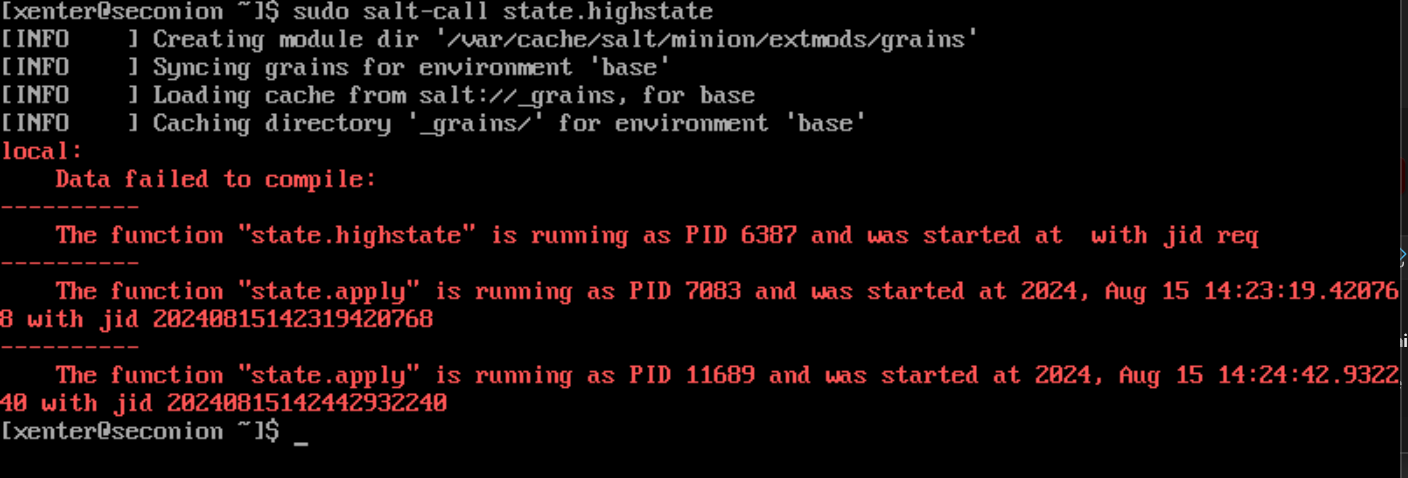
PID sudo so-start so-<SERVICE-NAME-HERE>After running so-status you may see that some services are listed asMissingas like the image below. These will force start the services that are missing. Check step 7 for an IMPORTANT NOTE.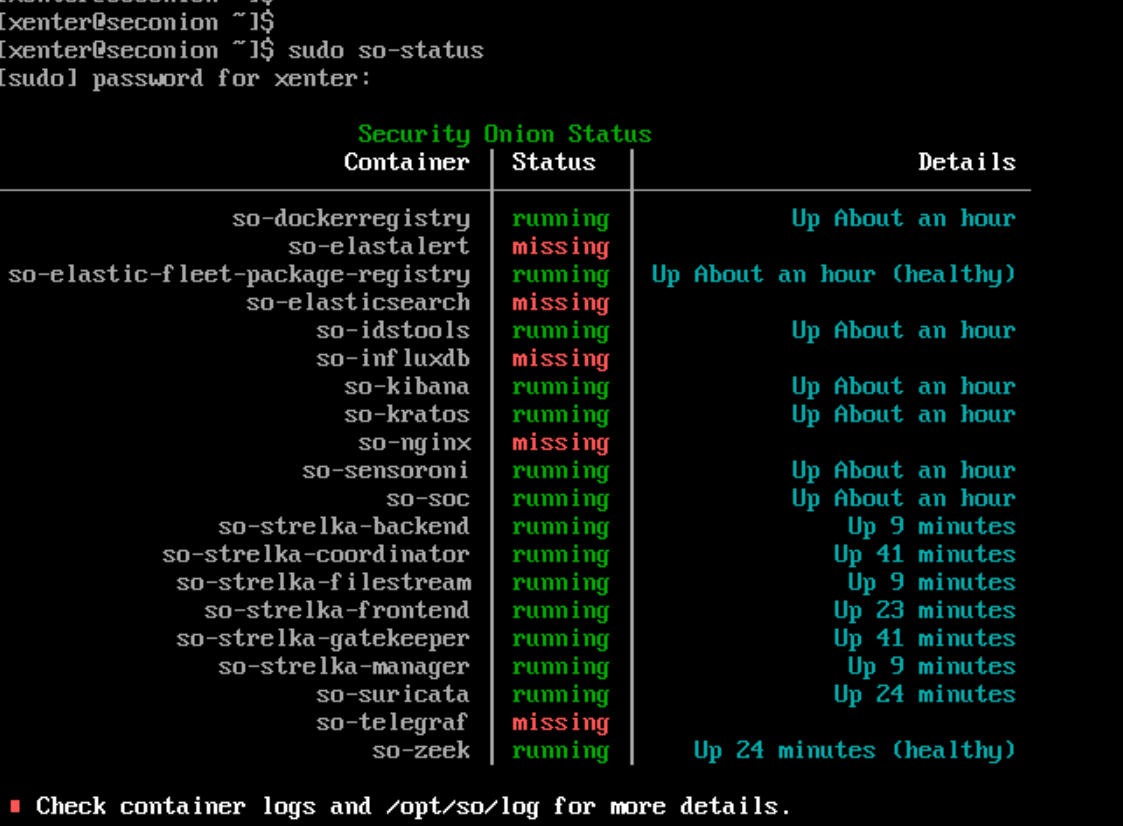
missing sudo tcpdump -i <interface-name> vlan <VLAN-ID>This command will run a tcpdump, it will output all traffic being caught over the vlan ID as listed. You can also remove the VLAN section for all traffic. Make sure you know which interface name you are trying to scan viaifconfigsudo docker ps-aThis will check all currently running docker containers. Security Onion is heavily reliant on docker containers. If you notice that any are running that need to be, use the commandsudo docker start-<CONTAINER-NAME-HERE>IMPORTANT NOTE: certain containers rely on others to be running first (ex. Elastalert cannot start before Elasticsearch)