Troubleshooting Solidworks
Table of Contents
Solidworks Error Messages
“Could not obtain a license for SOLIDWORKS Standard. Cannot connect to a license server. (-15,10032,0)”
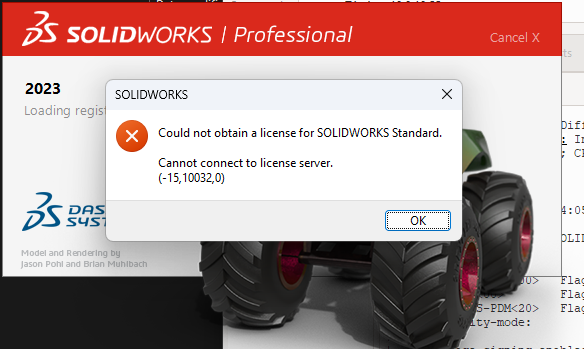
Solidworks Port Error This error most likely means the Solidworks ports are closed on the server. Make sure the following ports are open on the Solidworks license server:
- 25734/tcp
- 25735/tcp
- 1433/tcp
- 1434/tcp
- 3030/tcp
- 25734/udp
- 25735/udp
- 1433/udp
- 1434/udp
- 3030/udp
NOTE: The above section mentions both TCP and UDP ports. If you are only using TCP on your network, then you can ignore the UDP ports. Opening the TCP ports should be sufficient.
Why is Solidworks running slow?
This can happen for a few different reasons. Start troubleshooting by checking the following:
Is the machine using dedicated or integrated graphics for Solidworks?
To find the answer, open Task Manager while Solidworks is running and check to see if there are more than 1 entry for the GPU and what % is being consumed. Most engineering laptops will have 2 GPU entries in task manager. One for the integrated graphics and the other for the dedicated GPU. Solidworks will run extremely slow if using integrated graphics.
This screenshot shows a computer that’s using the integrated graphics for Solidworks rather than the dedicated GPU.
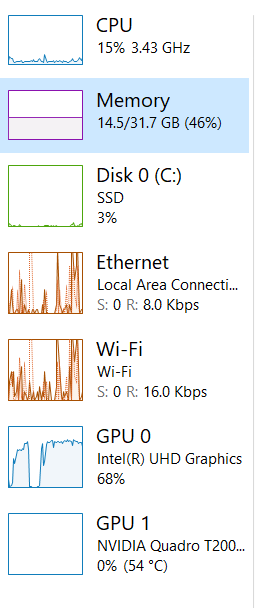
Task Manager If using the integrated graphics, open the NVIDIA control center and go to 3D Settings > Manage 3D Settings > Program Settings. Select Dassault Systems Solidworks from the drop down list. Then select “High performance NVIDIA processor” instead of “Integrated Graphics” and apply the changes.
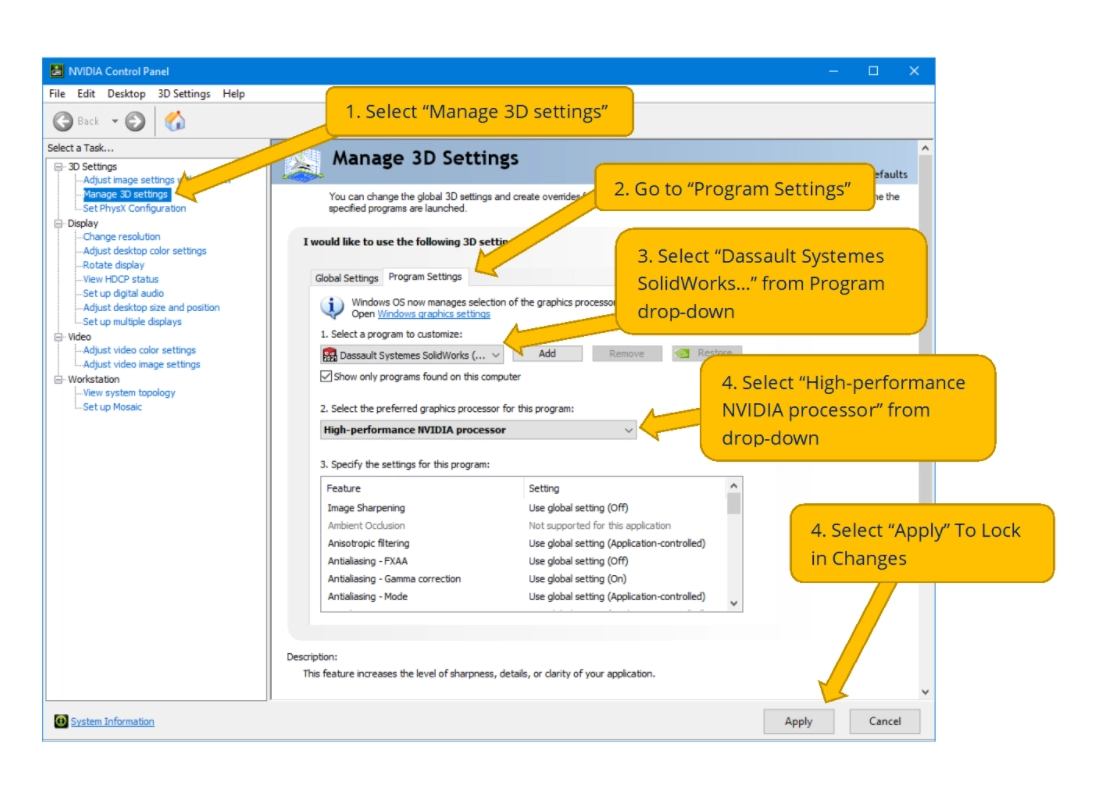
Nvidia Control Panel
How much RAM is being consumed? Is the machine running out of RAM when it feels slow?
- If the RAM is maxed out, try closing any web browsers to see if that helps.
- If RAM is the root cause, then we can purchase an upgrade for that computer. Most engineers should need no more than 32 GB, unless they are dealing with very large models in Solidworks.
How much CPU is being consumed?
- If you check your task manager and see that CPU usage is extremely high while GPU is low, go to SOLIDWORKS with no documents open. In the top left go to
Tools->Options. From this menu go toPerformanceand ensure thatUse Software OpenGLis NOT checked. Checking this means that SOLIDWORKS will bypass the GPU to use the CPU for rendering. This is commonly used to test whether or not performance issues are GPU related.
- If you check your task manager and see that CPU usage is extremely high while GPU is low, go to SOLIDWORKS with no documents open. In the top left go to
Are you using the correct GPU drivers?
- Drivers are important to make sure that your GPU functions properly. SOLIDWORKS makes drivers specifically for use of their software. Going through the SOLIDWORKS Hardware Certification website you can sort by make, model, and GPU. Install the recommend drivers, and if necessary use Guru 3D DDU to uninstall previous drivers properly.
Connection Issues
- Cannot Connect to Server. This has two main parts PDM & Network License Server.
If users are getting an error
Cannot Connect to Archive Serverthis can be due to the archive server not booting properly. Connect to the SOLIDWORKS server either via Promox or RDP. In Windows search bar openServices. Scroll down and findSOLIDWORKS PDM Archive Server. Start the service.If users are getting a
Cannot obtain a license or cannot connect to license serverStart by connecting to the SOLIDWORKS server. Then in the Windows search bar findSolidNetWork License Manager. Open this app and it will pull up the license manager, there should be a button to Start the service.If a user is getting a
Failed to obtain a license for SOLIDWORKS PDM Standard. Cannot connect to the license server systemthis is solved differently. Start by opening a notepad session in administrator mode. Then in the top left go to File -> Open.C:\Windows\System32\drivers\etc. Make sure to search by all files. At the bottom tab over once and add the ip10.0.10.55and then following withsolidworks-pdm. See image below. Make sure to save changes.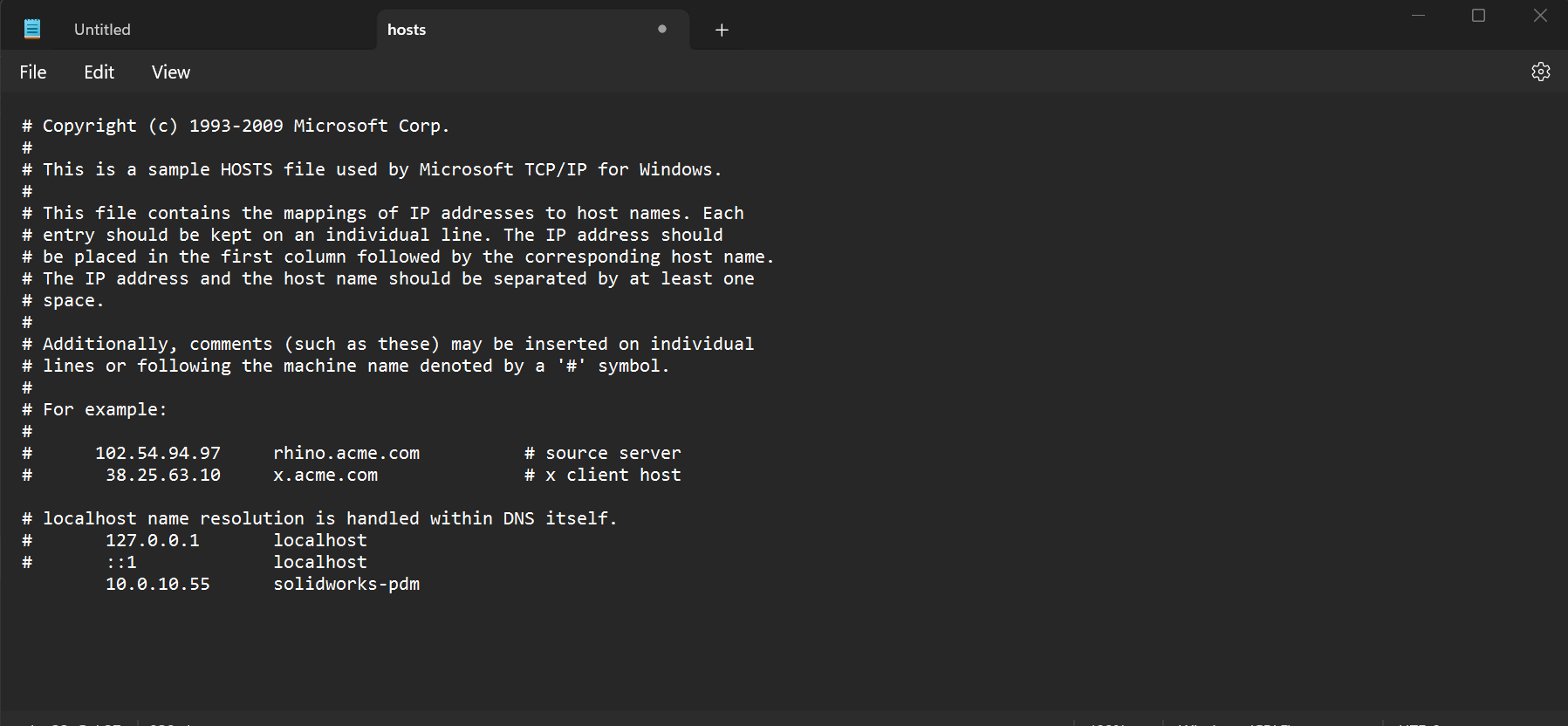
NotepadImage